The Print Station is the app that prints your event photos on site. Install it on the computer connected to your printers, connect it once to your account with a code, and it prints on its own, with no print dialog.
1. Download
Download coming soon. In the meantime, ask the MediaPixs team for the link.
Mac with Apple silicon (M1 or later). Windows 10 or 11.
First launch: a warning may appear
Mac: if macOS won't open the app, right-click MediaPixs Print Station in Applications, then choose “Open”.
Windows: if “Windows protected your PC” appears, click “More info”, then “Run anyway”.
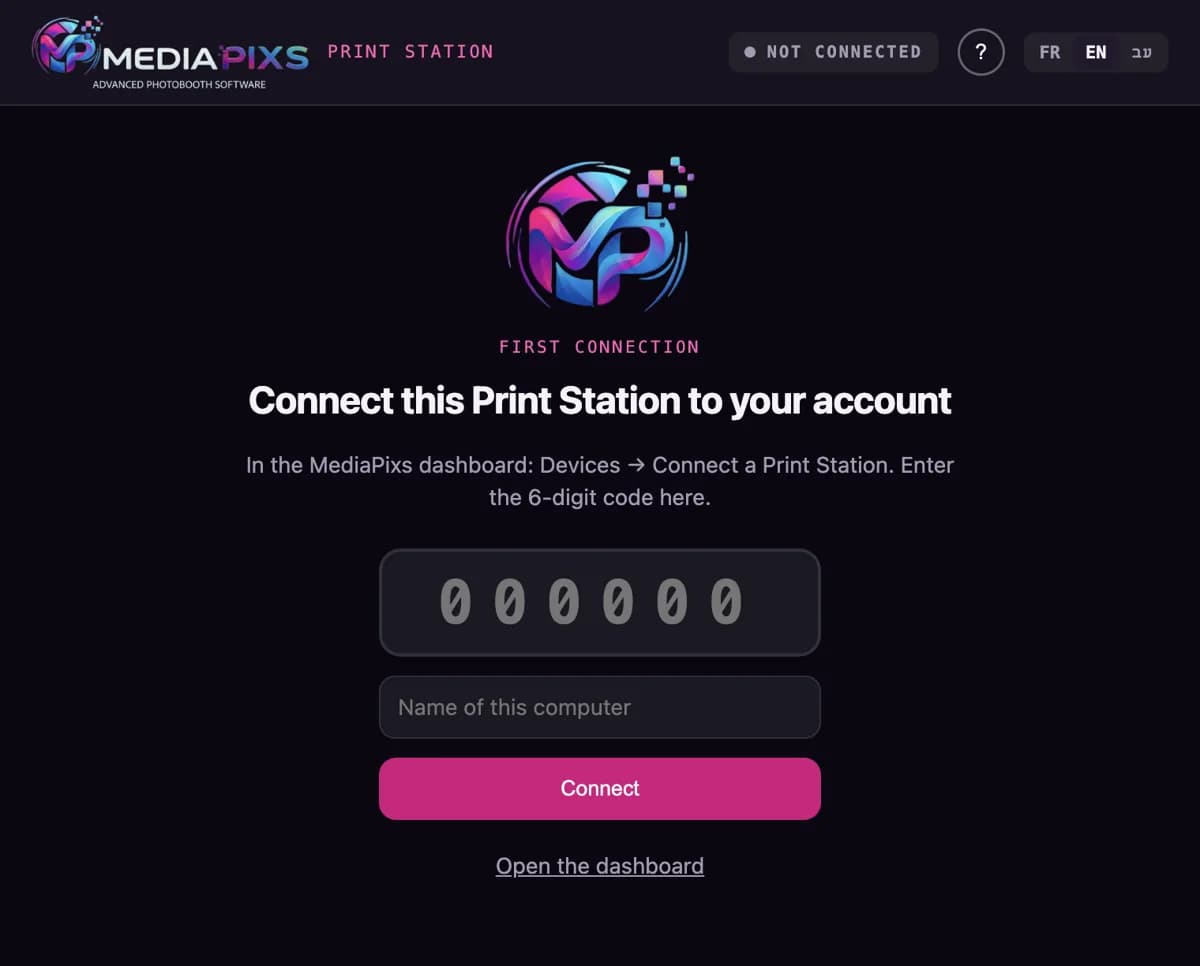
2. Connect the Print Station to your account
- 1First install each printer's driver (DNP, HiTi, Epson…) and check it prints from the computer.
- 2Open the Print Station.
- 3In your MediaPixs dashboard: Devices → Connect a Print Station. A 6-digit code is shown for 10 minutes.
- 4Enter the code in the Print Station, name the computer (e.g. “Booth Mac”), then click “Connect”.
3. Choose the printers
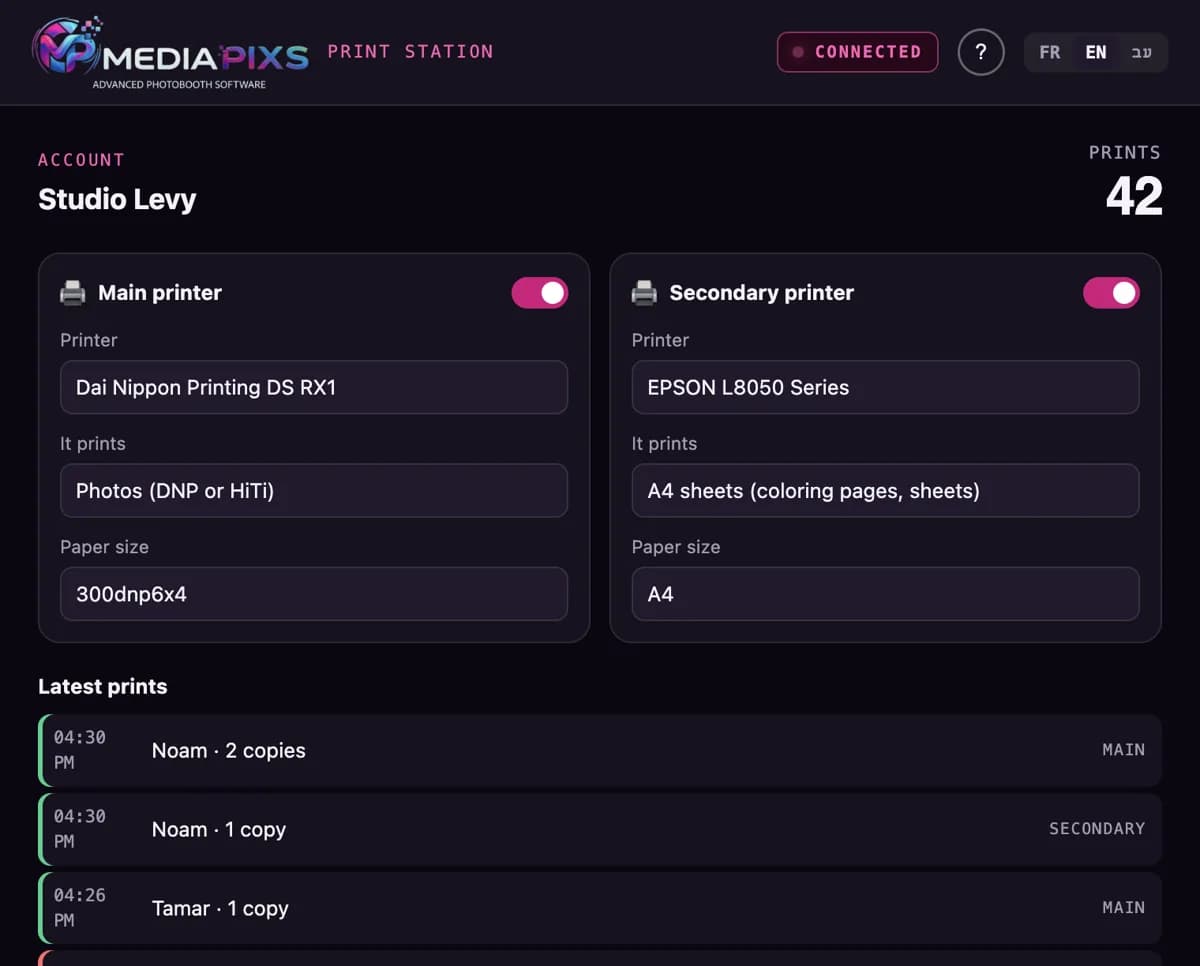
- 1Main printer: pick your DNP (or HiTi) and “Photos”.
- 2Secondary printer: if you run ColorPixs or Popixs sheets, turn it on, pick your Epson and “A4 sheets”.
- 3Paper size: leave “Default”, or pick your paper size (e.g. 300dnp6x4 for 4×6 on DNP).
- 4Settings are saved right away. Both printers work at the same time.
- 5Click “Print a test page” under each printer: a MediaPixs page should come out (4×6 photo on the DNP, light A4 page on the Epson).
DNP: always pick a predefined driver paper size, never a custom one.
4. Check before the event
- 1The light at the top should say “Connected”.
- 2Open your event's kiosk with ?test=1 at the end of the address, take a photo and tap “Print”: the print should come out and show up in “Latest prints”.
- 3In the dashboard, on the Devices page, your Print Station shows as “Online”.
On event day
- Don't rely on the venue's Wi-Fi: it often blocks connections or drops. Bring a 4G router or a hotspot.
- Plug the computer into power and keep the Print Station open: it prevents sleep while running.
- If the network drops, prints wait: they come out as soon as the connection is back.
Troubleshooting
- The light stays “Offline”
- Check the computer's internet connection. The Print Station retries on its own.
- My printer isn't in the list
- Install its driver and check it prints from the computer, then reopen the Print Station.
- A print is red in “Latest prints”
- The printer rejected the job (paper, ribbon, cover). Fix it, then reprint from the dashboard or the gallery.
- A print doesn't come out
- If the Print Station had taken it and the network dropped, it goes back in the queue after 5 minutes.
- “This Print Station was removed from the account”
- It was removed on the Devices page. Generate a new code and connect it again.
- Windows prints at the wrong size
- Check the printer's default paper size in Windows settings (4×6 for DNP).